 stickdriftest
An Xbox One controller that moves your character after you let go needs a different check from one that keeps disconnecting. Start by separating the symptoms. Resetting the connection can help with one problem without changing the other.
This is a non-destructive troubleshooting guide for an older controller family, not an instruction to open the shell, replace a module or force calibration meant for another model.
Is it drift or connection trouble?
Drift means unwanted stick input while the stick is released. A connection problem may leave the tester empty, stop all inputs or cause interruptions. Those observations are different, even if both make a game difficult to play.
Write down what happens before changing anything. Which stick is involved? Does movement continue while untouched? Do buttons still respond? If the whole controller drops out, use the reset and connection guide rather than assuming a new joystick is needed.
Record an Xbox One controller baseline
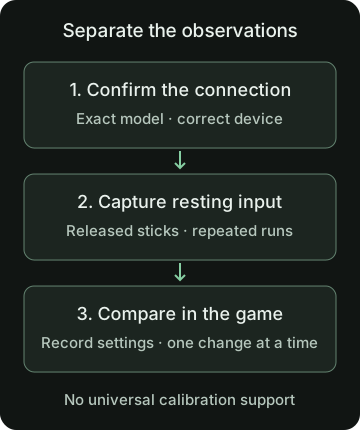
Use the Xbox controller tester to establish a useful connection. Not every Xbox One-era controller supports Bluetooth. Check your model and use its supported connection method rather than a tutorial for a newer Wireless Controller.
A known data-capable USB cable can provide a helpful wired comparison where supported. Confirm the selected device, press a button and check that each axis follows the intended stick. With remapping software, the browser may see a virtual controller instead of the physical device you expected.
Then open the stick drift test. Release both sticks, place the controller on a stable surface and run the full resting capture. Keep the page focused and your hands off the sticks. Save the result, repeat the check and note whether the same directional bias returns.
The mean and peak offsets describe that capture; they do not tell you how much of a component is damaged. A small nonzero reading is not a universal failure verdict.
Compare games before changing several settings
A game can ignore movement near the center through a deadzone. Another can respond to similar input. Record the original setting, adjust only the relevant stick if needed, and check slow deliberate movements as well as the unwanted motion.
A larger deadzone can hide a symptom while reducing fine control. If aiming becomes awkward, do not keep increasing it just to make the camera stand still. Read the controller deadzone guide for the distinction between input, sensitivity and response.
Keep connection methods consistent when comparing saved browser runs. A change from wireless to wired can alter the test conditions; note it instead of treating the runs as identical.
Do not assume a newer calibration option applies
Microsoft’s February 2024 announcement confirms a thumbstick tool in Xbox Accessories, but it is not a current support list for every Xbox One model, Elite variant or third-party pad. Check the current official requirements for the exact device.
The Xbox calibration guide explains the source and a before-and-after workflow. The official announcement also says that normal wear-related drift is not something the tool can resolve.
Our browser preview does not unlock calibration support on an older controller. It only calculates a separate output using a temporary center and deadzone. Raw resting measurements remain unchanged.
Choose the next step from the evidence
If inputs are missing, work through connection help. If buttons or triggers are also a concern, use the button and axis tester. If the same off-center symptom persists, collect your model details, game observations and repeated captures for manufacturer support or a qualified repairer.
Do not pour cleaner into the controller or open it solely because a dot is off center. A worn sensor and a shifted mechanical center can produce similar observations, and an actual inspection may be needed to distinguish them.
The useful result of this checklist is a clearer problem description, not an automatic repair decision. It gives the next person something better to work from than “the controller feels wrong.”
Sources and scope
This guide explains the concepts and our browser tool. It is not a hands-on compatibility report or a diagnosis of your controller.
- Xbox Wire: February 2024 update and thumbstick recalibrationOfficial announcement of recalibration in Xbox Accessories on console/PC, including its wear-and-tear limitation. This is not a current model-support list or menu walkthrough.
- Xbox: Wireless Controller features and compatibilityCurrent product connection and compatibility information. It does not describe every older Xbox One controller or a universal factory-reset procedure.
Our diagrams are original illustrations. Example values are made-up teaching examples, not recorded controller results.
PUT IT INTO PRACTICE
Run the resting stick drift test
No download or account. Controller readings stay in your browser.
Run the resting stick drift testRelated guides