 stickdriftest
If an Xbox stick feels off center, calibration is worth understanding before you try it. It can change how supported software interprets the stick. It cannot put worn material back onto a sensor or make a damaged centering mechanism new again.
Microsoft announced a thumbstick recalibration tool in Xbox Accessories in February 2024. The same announcement explicitly says that not all issues can be resolved, including drift from normal wear and tear. That limit matters more than a promise of “zero drift.”
What Xbox controller calibration changes
Calibration concerns the relationship between a physical stick position and the input reported by the controller or software. Center and range are different parts of that relationship. A stick that reports the wrong neutral point is not necessarily the same problem as one that cannot reach its expected range.
A deadzone does something else: it ignores some input. Read the deadzone explanation if you are choosing an in-game setting rather than recalibrating a supported device.
Check the exact controller and software first
“Xbox controller” covers several generations, specialist models and third-party products. Do not assume that a procedure for one applies to another, or that a feature is available just because the controller connects.
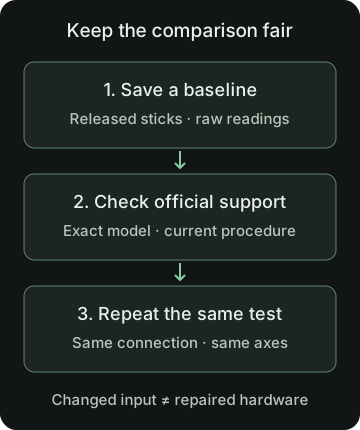
The official announcement identifies Xbox Accessories on console or PC. For current eligibility and instructions, use Xbox’s calibration support page and the guidance shown by the app for your device.
We could read the announcement, but not the detailed support page through our text-fetch tool. We therefore are not supplying a guessed menu path, a complete model list or a claim that the option is present on your controller today.
Make the before-and-after comparison useful
- Record the starting conditions. Note the controller model, connection, software and the symptom. Keep a copy of any settings you may change.
- Save an untouched-stick baseline. Open the stick drift test, confirm the correct controller and run a resting check. Do not adjust the preview center to make the starting numbers look better.
- Use only the procedure that applies. If official software offers recalibration for your device, follow its current instructions. Do not run unrelated steps from another controller’s tutorial.
- Repeat under the same conditions. Use the same connection and axes, release the sticks and save another run. Compare center bias and mean offset, not just one momentary dot position.
- Return to the game. Check the original problem and deliberate small movements. A changed browser reading is not, by itself, proof that the issue is solved.
The Xbox controller test also shows buttons, triggers and axes. If you change several settings or swap connection methods at once, it becomes harder to explain what affected the result.
What if the recalibration option is missing?
Check the official requirements for your model and connection instead of assuming that the app is broken. A manufacturer-specific controller may use different software. A Windows calibration dialog and the Xbox Accessories tool are not automatically the same adjustment.
Missing browser inputs are another problem again. Use connection help before drawing conclusions from an empty tester. Restarting or re-pairing belongs to the Xbox reset troubleshooting guide, not a hardware calibration sequence.
When calibration is not enough
If a stick still reports unwanted movement, keeps changing its resting position or feels mechanically loose, stop repeating adjustments just to chase a perfect zero. The test describes observed input; it does not locate a failed part.
For an older model, work through Xbox One drift checks. For repair decisions, consult the manufacturer’s current support options. Our browser calibration preview is an illustration only: it changes neither hardware settings nor the raw results used in this comparison.
Sources and scope
This guide explains the concepts and our browser tool. It is not a hands-on compatibility report or a diagnosis of your controller.
- Xbox Wire: February 2024 update and thumbstick recalibrationOfficial announcement of recalibration in Xbox Accessories on console/PC, including its wear-and-tear limitation. This is not a current model-support list or menu walkthrough.
- Xbox: Wireless Controller features and compatibilityCurrent product connection and compatibility information. It does not describe every older Xbox One controller or a universal factory-reset procedure.
Our diagrams are original illustrations. Example values are made-up teaching examples, not recorded controller results.
PUT IT INTO PRACTICE
Record a resting baseline
No download or account. Controller readings stay in your browser.
Record a resting baselineRelated guides