 stickdriftest
Before looking for a reset button, decide what you want to fix. A controller that will not connect, a button mapped to the wrong action and a camera that moves by itself are three different problems.
There is no single reset sequence we can responsibly give for every Xbox-branded and Xbox-compatible controller. Start with the least disruptive action that fits the symptom, then check whether that specific problem changed.
What do you mean by “reset”?
Restarting turns the controller off and back on. Re-pairing establishes its wireless connection again. Changing a profile restores or replaces a button mapping. Recalibration concerns how a supported device interprets stick position.
None of those is the same as replacing a worn joystick. If the controller connects and its camera input is the only issue, skip ahead to the symptom check instead of deleting pairings or profiles unnecessarily.
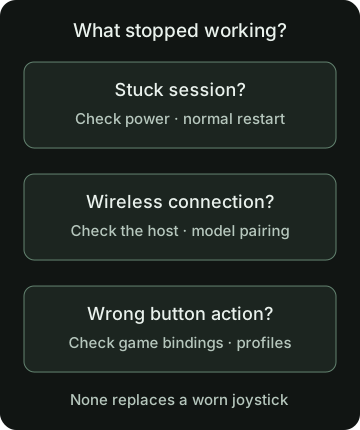
Restart before changing settings
If the controller has stopped responding, first rule out an interrupted session or power problem. Leave any active game safely, check the battery or cable, and use the controller’s normal power-off method before turning it back on.
If it cannot respond to its usual controls, follow the manufacturer’s instructions for that exact model. Do not open the casing or remove an internal battery to perform a routine restart. Never disconnect power in the middle of a firmware update.
We have not verified a current button-hold timing for every model, so there is no universal “hold this for six seconds” instruction here. Use official Xbox controller troubleshooting or your third-party manufacturer’s documentation for the applicable procedure.
If the problem is wireless, check that connection
Confirm which device the controller is meant to be connected to. A controller used with several devices can leave you troubleshooting the wrong connection. Xbox Wireless and Bluetooth are not interchangeable names for one pairing method.
Try a known data-capable wired connection where supported. If the controller works there, you have a useful difference to investigate; you have not proved that every wireless component is healthy or faulty.
Re-pair using the instructions for your controller and host device. Avoid removing an existing pairing until you know how you will establish it again. Older Xbox One models do not all have the same wireless capabilities; the Xbox setup page is a starting point for browser testing, not a complete model matrix.
If the wrong action happens, check the mapping
A face button triggering an unexpected action may be a game binding, controller profile or remapping-software issue. Record the current configuration before changing it. Compare another game or a neutral input viewer to narrow down which layer differs.
The controller button test shows inputs exposed by the browser. A virtual controller created by remapping software may be what appears there, so select the intended device and read the mapping notice.
Restoring a profile does not necessarily restart the controller, erase firmware calibration or restore a game’s bindings. Make one change, retest, and keep the original configuration available.
Test the symptom that remains
Once the controller is visible, open the Xbox input tester. Press and release the buttons you were having trouble with. For unwanted joystick movement, use the resting stick drift test with the controller untouched.
If a reset restores the connection but the stick remains off center, that is not contradictory: you addressed the connection, not necessarily the stick. Read what Xbox calibration can change or the Xbox One drift checklist before trying a different remedy.
No browser reading is a hardware-health certificate. If nothing appears at all, follow connection help; if problems persist, use the current official support route rather than an advertised instant reset fix.
Sources and scope
This guide explains the concepts and our browser tool. It is not a hands-on compatibility report or a diagnosis of your controller.
- Xbox: Wireless Controller features and compatibilityCurrent product connection and compatibility information. It does not describe every older Xbox One controller or a universal factory-reset procedure.
- Xbox Wire: February 2024 update and thumbstick recalibrationOfficial announcement of recalibration in Xbox Accessories on console/PC, including its wear-and-tear limitation. This is not a current model-support list or menu walkthrough.
Our diagrams are original illustrations. Example values are made-up teaching examples, not recorded controller results.
PUT IT INTO PRACTICE
Check Xbox button and stick inputs
No download or account. Controller readings stay in your browser.
Check Xbox button and stick inputsRelated guides