 stickdriftest
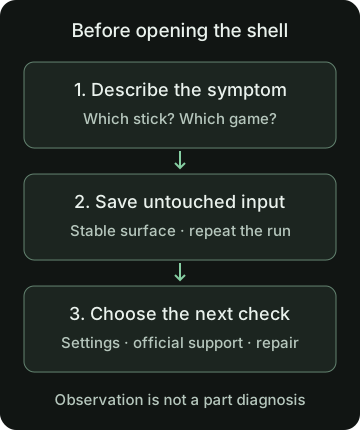
If your PS4 camera moves while the right stick is untouched, it is tempting to jump straight to a cleaning video or replacement part. First make the problem repeatable. You need to know which stick, which game and which conditions are involved before a repair decision makes sense.
This guide covers checks before opening a DualShock 4. It is not a teardown tutorial, a soldering guide or a promise that a reset will repair a worn stick.
Is it stick drift or a different input problem?
Describe what happens without guessing at the cause. Does the camera turn, the character walk, or a menu selection jump? Does it happen while both sticks are released? A stuck button, unusual binding or lost connection can produce a different problem that a joystick repair will not solve.
Compare another game if you can. Leave the original settings recorded rather than changing deadzone and sensitivity together. The deadzone explanation covers why two games can react differently to similar input.
Record a DualShock 4 baseline
Connect the controller to the computer or supported device running the PS4 controller tester. A cable that charges the controller is not necessarily a data cable. If the browser does not detect it after a button press, use connection help before interpreting an empty display.
Confirm that each visible stick axis follows the stick you move. If a nonstandard mapping is reported, choose the correct axes instead of assuming the defaults are right. Then open the resting drift test, release both sticks and leave the controller on a stable surface for the full capture.
Save a run, repeat it, and note whether the same direction returns. A repeatable center bias is useful evidence of what the controller reports. It does not tell you whether the cause is dirt, sensor wear, centering mechanics or processing.
What does the official PS4 controller reset do?
Sony’s DualShock 4 troubleshooting page gives a reset and re-pair procedure: turn off and unplug the PS4, disconnect the controller’s USB cable, hold the rear reset button for at least five seconds, then reconnect by the official USB cable and press the PS button.
Use the current manufacturer page for the full procedure and applicable support options. This is a reset step, not evidence that the controller’s position sensors have been renewed or that its stick center has been recalibrated.
If you choose to try it, compare the original symptom afterward. A restored connection and unchanged drift can coexist because they are different issues.
Cleaning, calibration or repair?
Cleaning is relevant only when contamination is part of the problem. It does not reverse wear. Do not pour liquid into the stick, force the mechanism or assume a cleaner is safe for every component. Internal work needs suitable instructions and skills.
Third-party calibration tools are a separate decision. The DualShock Calibration GUI explicitly warns that recalibration may make a problem worse and can have effects that cannot be undone. Its warning is a reason to pause, not an invitation to keep recalibrating until a tester reads zero.
Our browser preview does not make those hardware changes. It illustrates center correction and a deadzone on separate values; it leaves the raw measurements alone. For the broader distinction, read the reset, settings and calibration comparison, whose hardware-tool discussion also covers the importance of model-specific support.
Prepare useful notes for support or repair
Write down the exact controller model, affected stick, games involved, connection method and what you tried. Include repeatable observations or local exports, but do not label them a certified hardware diagnosis.
Check current warranty and repair options before opening the shell. If the stick is mechanically loose or the symptom persists across careful checks, a qualified repairer can inspect what the browser cannot. The cause guide explains the possible failure points without pretending a single reading identifies one.
Sources and scope
This guide explains the concepts and our browser tool. It is not a hands-on compatibility report or a diagnosis of your controller.
- PlayStation: Troubleshoot DUALSHOCK 4Official reset/re-pair procedure and routes to support for analog-stick problems.
- DualShock Calibration GUI: capabilities and warningsThird-party WebHID utility with device-setting changes and explicit warnings about potentially irreversible outcomes. Its presence is not a recommendation to run it.
Our diagrams are original illustrations. Example values are made-up teaching examples, not recorded controller results.
PUT IT INTO PRACTICE
Check your resting stick input
No download or account. Controller readings stay in your browser.
Check your resting stick inputRelated guides