 stickdriftest
Your thumb is off the stick, but your character walks forward or the camera slowly turns. That is the problem people usually mean by stick drift: movement is being reported when you are not deliberately moving the joystick.
The awkward part is that the same symptom can have different causes. A worn position sensor, a centering mechanism that has shifted, contamination and software settings can all matter. Watching a dot move in a tester will not tell you which one is responsible.
What causes stick drift?
A joystick needs two things to agree: where the stick physically rests and what its position sensor reports. If either changes, the controller can report an off-center position after you let go.
Wear in a position sensor
Many controllers use potentiometers. A moving contact travels across a resistive track as the stick moves. Wear can change the electrical reading, so the position reported by the controller no longer matches the position you expect.
iFixit’s DualSense teardown and drift explanation shows this mechanism in detail. That explains one common failure mode, not the construction or condition of every controller. Other sensor designs do not use the same sliding contact.
A stick that returns to a different center
The spring and surrounding mechanism bring a released stick back toward neutral. Wear or a change in the mechanism can leave it resting elsewhere. The sensor may be reporting that position correctly, even though it is not the center the controller expects.
Contamination around the mechanism or contacts
Dust, residue and other contamination can interfere with movement or electrical contact. That is one reason cleaning sometimes changes a symptom. It is not evidence that every drifting controller is dirty, or that spraying cleaner into the stick is safe or effective.
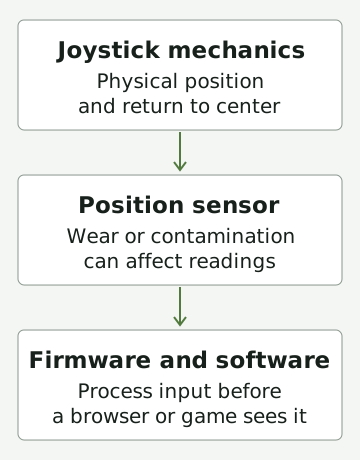
If you are wondering how stick drift happens on a nearly new controller, age alone will not settle it. An incorrect center, a mechanical issue or an input-processing difference can show up without years of use. A tester cannot establish the cause or predict how long a stick will last.
Why does it drift in one game but not another?
Games do not all interpret the same input in the same way. One may ignore a small region around the center; another may respond to it. Different response curves, remapping profiles or controller settings can also change what you notice.
That means “it only happens in this game” does not automatically rule out an off-center input. It also does not prove a hardware fault. Compare the settings before deciding that either the game or the controller is to blame.
The controller deadzone explanation shows why a small input can be visible in a tester but ignored during play. Browser-visible readings may already include processing from firmware, drivers or remapping software; they are not direct measurements from the sensor.
Check resting input before changing anything
A repeatable baseline is more useful than moving three sliders and hoping. Before changing settings, use the stick drift test to observe what the connected controller reports while untouched.
- Connect it to the device running the page. Use a data-capable USB cable or a supported wireless connection. Press a controller button so the browser can detect it.
- Check the selected controller and axes. Start live view and move each stick. If the mapping is nonstandard, select the correct X and Y axes before judging the plots.
- Release the sticks and set the controller down. Use a stable surface. Do not hold a stick near its center with your thumb.
- Run the resting check. Keep the page focused through the three-second countdown and ten-second capture. Touching the stick makes that run a poor baseline, so repeat it.
- Save and repeat. The local JSON or image export lets you compare another session. Keep the connection and settings the same, or note what changed.
For connection instructions, use the PS5 controller test, PS4 controller test or Xbox controller test page. To check buttons and analog trigger values as well, open the controller button test. Browser and device support vary.
What do the readings actually tell you?
The resting check describes the input observed during that capture. Mean offset summarizes the distance from center over time. Peak offset is the largest observed distance. Average X and Y bias show whether the input tended toward a particular direction.
None of those numbers is a damage percentage. There is no universal cutoff that proves a controller is healthy or faulty, and a diagonal radial offset can exceed 100% because it combines two axes.
| What you observe | What it may mean | First check |
|---|---|---|
| Character drifts only in one game | A game's deadzone or response curve. | Compare another game and the in-game deadzone setting. |
| Resting X/Y bias is repeatable across games | An off-center stick being reported by the controller. | Repeat the resting check; note connection and remapping software. |
| Dot jumps and sticks seem to stick | Mechanical wear or contamination in the stick module. | Work through non-destructive checks; if persists, consider official support or repair. |
| No reading at all | Connection, permissions or mapping problem. | Check connection help instead of repair. |
A repeated off-center reading is useful evidence of the reported input under those conditions. It does not identify a worn potentiometer, dirt or a calibration error. It also does not guarantee how a particular game will respond.
No input at all? Work through the browser connection checklist. A charging-only cable, unsupported connection or mapping issue can stop a useful test before it starts.
Will cleaning, resetting or calibration fix it?
These are different actions, not interchangeable cures.
- Cleaning may help when contamination is involved. It cannot replace a worn contact or restore a damaged mechanism. Follow instructions appropriate to your exact model; do not pour liquids into the controller or assume a cleaner is safe for every material.
- Resetting can be part of a manufacturer’s troubleshooting process. It does not physically renew a joystick. For example, Sony provides DualSense reset instructions, not a promise that resetting repairs drift.
- Calibration changes how a supported system interprets center or range. Availability and behavior depend on the hardware and software. A deadzone instead ignores some input; it may conceal unwanted movement at the cost of fine control.
Our calibration preview is only a browser illustration of center correction and a radial deadzone. It does not recalibrate your controller or change the raw resting-test results. Record a baseline before any real adjustment, then compare afterward under the same conditions.
When to seek repair advice
If unwanted movement persists, check the manufacturer’s current support and warranty options before opening the controller. Keep your model details and a clear description of when the problem occurs. An export can document what you observed; it is not a certified diagnosis or a guarantee of a warranty claim.
Internal repairs can involve delicate parts or soldering. If that is not work you are comfortable doing, an experienced repairer is a better next step than another unverified “instant fix.”
For now, separate the two questions: what input is the controller reporting? and why is it reporting that input? The tester helps with the first. Further investigation is needed for the second.
Sources and scope
This guide explains the concepts and our browser tool. It is not a hands-on compatibility report or a diagnosis of your controller.
- iFixit: Why PS5 joysticks driftA DualSense teardown explaining potentiometer wear, centering mechanics and contamination. This is not evidence about every controller model.
- MDN: Using the Gamepad APIHow browser-visible axes and buttons are exposed.
- PlayStation: Troubleshoot DualSenseOfficial reset and support guidance for DualSense, not a universal drift repair.
Our diagrams are original illustrations. Example values are made-up teaching examples, not recorded controller results.
PUT IT INTO PRACTICE
Check your resting stick input
No download or account. Controller readings stay in your browser.
Check your resting stick inputRelated guides