 stickdriftest
Searching for PS5 controller calibration can lead to three very different things: a game’s deadzone setting, a reset procedure, or a utility that writes calibration data to a controller. Treating them as the same fix is where the confusion starts.
First decide whether you are trying to restore a connection, change how a game responds, or investigate the controller’s reported stick position. The safest next step depends on that answer.
What are you trying to change?
If the controller is not visible, start with connection troubleshooting. If it is visible but a game reacts too readily near the center, look at that game’s settings. If the stick reports an unexpected center or range, record a baseline before considering a real recalibration procedure.
The PS5 controller test shows browser-visible buttons, trigger values and axes. The homepage adds a timed resting check. Neither exposes every DualSense feature, and neither can decide which internal component is responsible for a symptom.
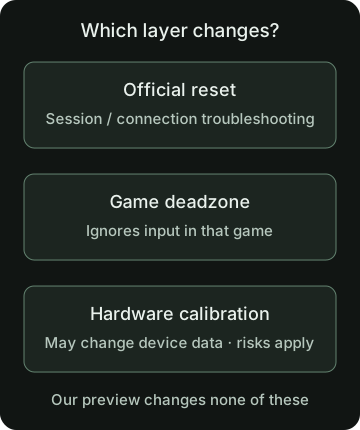
Game deadzones and a DualSense reset
A game deadzone ignores some stick input. It may stop unwanted camera movement, but it can also make small deliberate movements harder. Labels and formulas vary, so do not copy a browser percentage directly into an unrelated game slider.
Look in the specific game’s control settings. Do not assume that a standard DualSense and a DualSense Edge offer identical controller-level options or that every PS5 has one universal deadzone menu. The deadzone guide explains the trade-off without inventing a menu path.
Sony’s official troubleshooting page describes resetting DualSense with its rear reset button, followed by reconnecting to the console. That is a manufacturer troubleshooting action, not a claim that a worn joystick is repaired or its center permanently recalibrated.
Hardware-writing calibration tools need more care
Some third-party utilities communicate with supported controllers through interfaces such as WebHID and can change device calibration data. A tool running in a browser is not necessarily read-only.
The DualShock Calibration GUI advertises center/range operations and permanent changes. It also warns that calibration without replacing worn components may worsen the problem and may not be reversible. We inspected those stated capabilities and warnings; we did not run its procedures or verify a hardware-support matrix.
Before considering such a utility, check the exact controller, firmware, procedure, persistence behavior and recovery limits. Do not infer that another person’s successful video applies to your device. This guide does not provide a write-to-hardware sequence or recommend treating recalibration as a universal drift fix.
What our separate browser preview does
The calibration preview guide describes our much narrower function. You can choose a temporary center and a radial deadzone for separate preview values. The raw plots and timed resting metrics do not use that correction.
Those choices live in page memory. They do not write firmware, driver settings or game settings. A preview that reads zero therefore says nothing about whether your controller has been physically repaired.
To see the idea, start live view on the homepage, release the sticks and try the deadzone preview. Watch the distinction between the uncorrected input and the separate calculated output.
Compare results without chasing a perfect zero
Record a resting check before changing real settings. Keep the same connection and selected axes for a later comparison, and note any remapping software involved. Repeat a run if you touched the controller or lost focus during capture.
Then test the original problem in the game. There is no universal offset percentage that certifies a DualSense as healthy, and the browser cannot tell you whether wear, contamination or a centering issue is responsible.
If unwanted input persists, check official support and warranty options. For a related older model, the PS4 pre-repair checklist keeps model-specific reset guidance separate from the shared measurement principles.
Sources and scope
This guide explains the concepts and our browser tool. It is not a hands-on compatibility report or a diagnosis of your controller.
- PlayStation: Troubleshoot DualSenseOfficial reset and support guidance, not a promise of stick recalibration or drift repair.
- DualShock Calibration GUI: capabilities and warningsThird-party WebHID utility with device-setting changes and explicit warnings about potentially irreversible outcomes. Its presence is not a recommendation to run it.
Our diagrams are original illustrations. Example values are made-up teaching examples, not recorded controller results.
PUT IT INTO PRACTICE
Check DualSense inputs first
No download or account. Controller readings stay in your browser.
Check DualSense inputs firstRelated guides